


Historically, targeting civilians as a part of conflict has been considered immoral. This dates to Sun Tzu, centuries BC, “to besiege cities is the worst form of warfare.” But under the new “unrestricted warfare” rules of Russia, China and others, targeting average Americans has become the forward edge of the battle area. Hacking into the DNC servers, creating FB accounts labeled BlackLivesUSA and urging protests and counter-protests, presumably with the hope of inciting violence, injury, deaths and arrests (Mueller Report) and creating fake news stories that Taiwan stranded their citizens during an outage at the airport in Japan, resulting in a suicide (DOD Strategy for Operations in the Information Environment). How do we fight these immoral efforts that capitalize on of our fundamental freedoms of speech and assembly? https://media.defense.gov/2023/Nov/17/2003342901/-1/-1/1/2023-DEPARTMENT-OF-DEFENSE-STRATEGY-FOR-OPERATIONS-IN-THE-INFORMATION-ENVIRONMENT.PDF
Category: Military
NWC Command & Staff available in both kindle & audible versions
Going to the end and then will work backwards
Kindle Only
Intimate Internet Violence – It All Started with Revenge Porn
Marines United led to many investigations and the first modification of the Uniformed Code of Military Justice in decades. “Article 117a, UCMJ, colloquially referred to as the UCMJ’s “revenge porn” article, criminalizes the wrongful broadcast or distribution of intimate visual images. Article 117a was codified in response to the 2017 “Marines United” scandal in which nude images of female service members and civilians were posted on Facebook by military members
It all started with revenge porn. Intimate Internet violence. That no laws could stop.
When I began serving as the Public Web lead for the USAF in 2011, I became aware of a bizarre, but serious problem on official government social media accounts. Some couples who broke up practiced what was referred to as “revenge porn.” But they leveled up the game because publishing on their own social media accounts might only reach a few hundred followers. Since the goal was public shaming as a blood sport, many tried to leverage official government social media accounts for the military base or installation where they and their friends lived. So, the admins of the official social media sites of government organizations were playing virtual whack-a-mole denying the publication of insidious invasions of deeply private moments.
Revenge porn is the nonconsensual distribution of sexually explicit images or videos and sometimes without their knowledge that the images or videos exist.
Early Isolated Examples of “Revenge Porn”
A theater manager and photographer secretly took a revealing photo of Marion Manola, a Broadway star, and turned it into an erotic postcard in 1890. Manola sued the men, not wanting to be depicted as a sexual object. “Manola’s case was used as an example by jurists Samuel Warren and Louis Brandeis when they argued for a new legal “right to privacy” in their landmark Harvard Law Review article that same year. https://groups.csail.mit.edu/mac/classes/6.805/articles/privacy/Privacy_brand_warr2.html
In 1903, because of another case involving the unauthorized use of a woman’s photograph, the New York Legislature enacted the first right to privacy in the US and across the common law world, including Australia and the United Kingdom.” https://theconversation.com/in-the-19th-century-a-man-was-busted-for-pasting-photos-of-womens-heads-on-naked-bodies-sound-familiar-168081
In the 1950s when Marilyn Monroe agreed to be photographed nude, but the photos were published in Playboy magazine without her consent in 1953. https://www.biography.com/actors/marilyn-monroe-playboy-first-issue-didnt-pose
In the 1980s, Hustler magazine ran a monthly feature called “Beaver Hunt” which featured nude photos of women submitted by readers. The images often included personal details about the women, such as their hobbies, sexual fantasies, or names, and some women sued the magazine for publishing their photos without permission.
Of course, when the ability to publish was limited by people who had money, means and magazines, the amount of revenge porn was relatively limited. Its explosive growth grew with the Internet. While the individual efforts to post partner porn on official Facebook accounts were usually successfully squashed by the admins or algorithms, the Marines United private Facebook group managed to slide under the radar for a while.
Marines United Facebook – Sharing Sexual Secret Braggadocio Videos
The Marines United scandal became national news in the spring of 2017. A closed Facebook group of some 40,000 members sharing bragging rights by sharing explicit images of their mostly female partners, many of whom were unaware their most intimate moments had been recorded. I wonder if they got their inspiration from the 1990s film Flatliners where one guy records a series of tristes and his fiancé discovers the video evidence of his indiscretions.
Marines United led to many investigations and the first modification of the Uniformed Code of Military Justice in decades. “Article 117a, UCMJ, colloquially referred to as the UCMJ’s “revenge porn” article, criminalizes the wrongful broadcast or distribution of intimate visual images. Article 117a was codified in response to the 2017 “Marines United” scandal in which nude images of female service members and civilians were posted on Facebook by military members,” according to an article on MilitaryJusticeAttorneys.com https://www.militaryjusticeattorneys.com/blog/2019/october/ucmj-article-117a-criminalizes-revenge-porn-/
The victims from Marines United indicated horrible results from their undesired fame, including stalkers.
Intimate Internet violence through public shame and embarrassment didn’t stop there. It has resulted, not surprisingly, in several suicides.
Fatal Fallout From Publishing Private Sexual Secret Videos
Tyler Clementi’s suicide in the fall of 2022 was a tragic event that brought attention to the issue of cyberbullying and harassment of LGBTQ+ youth. He jumped to his death after his roommate secretly recorded a kiss between Tyler and another young man and posted the covert video to Twitter. His death sparked national conversations about privacy, bullying, and the need for greater acceptance and understanding.
His story also led to increased efforts to prevent bullying and support LGBTQ+ individuals. The Tyler Clementi Foundation, founded by his family, works to prevent bullying and promote safe and inclusive spaces for LGBTQ+ youth.
In 2024, Generative AI became a force for “mutilating” people’s images, creating fake pornographic images of them. This was a new “deep fake” twist on revenge porn, but the public shaming as a blood sport remained overwhelmingly painfully real.
Mia Janin, 14, took her own life after a group of boys bullied her, reportedly pasting girls’ faces on porn stars’ bodies and calling her and her friends the “suicide squad.” https://www.eviemagazine.com/post/girl-14-commits-suicide-boys-shared-fake-nude-photo-suicide-squad
Producing Porn Stars from Public Pics of Random People
In April 2024, Laguna Beach High School administrators launched an investigation after a student allegedly created and circulated “inappropriate images” of other students using artificial intelligence.
While some states have made laws specific to nonconsensual sharing of intimate images and the military’s Uniformed Code of Military Justice has criminalized this act, it seems like we could use better federal criminal law to cover this nationally trending trouble.
Trust in the Marines
Years ago, I realized that the beautiful thing about the way the Marines teach trust is we don’t actually trust each other so much as we trust our ability to inventory our teammates. What we trust is our own assessment of our peers. Francis Fukuyama wrote a sociological treatise in which he posited that the most successful societies were built on Trust. And the Marines are one of the most successful organizations because of our Trust. It’s just not quite the kind of trust you might imagine.

Years ago, I realized that the beautiful thing about the way the Marines teach trust is we don’t actually trust each other so much as we trust our ability to inventory our teammates. What we trust is our own assessment of our peers. Francis Fukuyama wrote a sociological treatise in which he posited that the most successful societies were built on Trust. And the Marines are one of the most successful organizations because of our Trust. It’s just not quite the kind of trust you might imagine.
I’ll give you an example.
When I joined the Marines, I couldn’t swim. I nearly failed out of boot camp because I couldn’t swim. After passing boot camp with the lowest level possible, I tried repeatedly to get backseat jet qualified. The aviation swim qual is brutal. I failed repeatedly and they had to pull me off the bottom of the pool with that long hooked thing after I started sinking with my aviation gear and boots on. I went through the dunker chamber 4x and on the 3rd try with darkened goggles, I couldn’t find my belt to release it. That’s because I didn’t follow orders. I should have put my hand on the far side of my hip and followed the belt across to get to the release. But being freaked out by being upside down underwater in a tin can, when I didn’t have blackened goggles, I had just looked down and grabbed as fast as I could. Once I had blackened goggles and I couldn’t see the buckle, I freaked out. It took me a few seconds to release the buckle and then I followed the belt and arrived at the buckle but I had exceeded the time the navy divers were allowed to allow us to stay in the can which is counted in seconds.
It felt like someone punched me in the chest. A hand of God grabbed my flight suit and threw me on the surface of the pool beside the ladder going out of the pool. Then I had to go back in again. This time, darkened goggles, but only out the crew door, not just any door.
Later I took advantage of my assignment at MCRD San Diego and went to the pool every week when the recruit depot swim instructors made themselves available to the active duty personnel there to improve our swim skills. I upgraded from Level 4 to WSQ Water Safety Qualified, the highest level before WTI Water Training Instructor. I took and failed the WTI entrance exam repeatedly just like I had taken and failed the backseat jet water qualification.
How could I face my fear of water? Because I knew that water instructor Marines would sooner die than allow a Marine in their charge to die on their watch. That’s not to say one of them wasn’t alcoholic or even in rare circumstances addicted to cocaine. That’s not to say they weren’t the product of a domestic violent upbringing and weren’t practicing what they learned as kids now that they had families. That’s not to say one of them wasn’t sexually abused as a child and inclined to continue the tradition. That’s just to say I had zero doubt they would pull me off the bottom of the pool. I’m not saying all Marines have some substance abuse or other issue. I’m just saying it doesn’t matter with regard to trust. Because we trust each other based on our evaluation of each person’s character and skillset.
Later while serving in the State Department, a colleague complained about me inviting the secret service on our review of the sites we were responsible for during the 1st Lady’s visit to Busan. I responded to her (rather sarcastically) that law enforcement men like them had a higher probability of domestic violence and alcoholism, but I didn’t care if the 2 men beat their wives, kids and dogs when they went home, for the next 2 weeks, they were surgically attached to our hips.
So it was with Marines. They taught me to understand when and why I could and should trust my teammates. Every person I met, I was taught to do a personal inventory. In the Marines, I did it via an initial interview, but my State Department colleagues protested the probing questions about upbringing and hometown, etc., so I began to do it more stealthily, but I never stopped. To this day, I try to take inventory of everyone around me. I want to know each of my colleagues strengths and weaknesses and to rely on their areas of strength and reinforce or redirect tasks that don’t play to their strengths.

Laws on what government agencies are required to publish
government agencies required to budgets, budget justification, grants
TITLE VI—EXECUTIVE BRANCH TRANSPARENCYSubtitle A—Public Availability Of Information
Sec. 601. Requirement for disclosure of Federal sponsorship of all Federal advertising or other communications.
Sec. 602. Improving access to influential executive branch official’s visitor access records.
Sec. 603. Public availability of budget justifications and appropriation requests.
Sec. 604. Improving rulemaking disclosure for the Office of Information and Regulatory Affairs.
Sec. 605. Improving registration information from agents of foreign principals.
Sec. 606. Agency defined.
Sec. 607. Government-wide entity identifier.
Sec. 608. Grants transparency requirements.
(a) Requirement.—Except as provided for in subsection (b), each advertisement or other communication paid for by an agency, either directly or through a contract awarded by the agency, shall include a prominent notice informing the target audience that the advertisement or other communication is paid for by that agency.
(b) Exceptions.—The requirement in subsection (a) shall not apply to an advertisement or other communication—
(1) that is 200 characters or less; or
(2) that is distributed through a short message service.
(c) Advertisement Or Other Communications Defined.—In this section, the term “advertisement or other communication” includes—
(1) an advertisement disseminated in any form, including print or by any electronic means; and
(2) a communication by an individual in any form, including speech, print, or by any electronic means.
Budgets and Budget justification
SEC. 603. PUBLIC AVAILABILITY OF BUDGET JUSTIFICATIONS AND APPROPRIATION REQUESTS.
(a) In General.—Section 3 of the Federal Funding Accountability and Transparency Act of 2006 (31 U.S.C. 6101 note) is amended to read as follows:
“SEC. 3. FULL DISCLOSURE OF FEDERAL FUNDS.
“(a) In General.—Not less frequently than monthly when practicable, and in any event not less frequently than quarterly, the Secretary (in consultation with the Director and, with respect to information described in subsection (b)(2), the head of the applicable Federal agency) shall ensure that updated information with respect to the information described in subsection (b) is posted on the website established under section 2.
“(b) Information To Be Posted.—
“(1) FUNDS.—For any funds made available to or expended by a Federal agency or component of a Federal agency, the information to be posted shall include—
“(A) for each appropriations account, including an expired or unexpired appropriations account, the amount—
“(i) of budget authority appropriated;
“(ii) that is obligated;
“(iii) of unobligated balances; and
“(iv) of any other budgetary resources;
“(B) from which accounts and in what amount—
“(i) appropriations are obligated for each program activity; and
“(ii) outlays are made for each program activity;
“(C) from which accounts and in what amount—
“(i) appropriations are obligated for each object class; and
“(ii) outlays are made for each object class; and
“(D) for each program activity, the amount—
“(i) obligated for each object class; and
“(ii) of outlays made for each object class.
“(2) BUDGET JUSTIFICATIONS.—
“(A) DEFINITIONS.—In this paragraph—
“(i) the term ‘agency’ has the meaning given that term in section 101 of title 31, United States Code; and
“(ii) the term ‘budget justification materials’ means the annual budget justification materials of an agency that are submitted to Congress in support of the budget of the agency, in conjunction with the budget of the United States Government submitted under section 1105(a) of title 31, United States Code, but does not include budget justification materials that are classified.
“(B) INFORMATION.—The information to be posted shall include the budget justification materials of each agency—
“(i) for the second fiscal year beginning after the date of enactment of this paragraph, and each fiscal year thereafter; and
“(ii) to the extent practicable, that were released for any fiscal year before the date of enactment of this paragraph.
“(C) FORMAT.—Budget justification materials shall be posted under subparagraph (B)—
“(i) in an open format machine readable and text searchable;
“(ii) in a manner that enables users to download individual reports, download all reports in bulk, and download in bulk the results of a search, to the extent practicable; and
“(iii) in a structured data format, to the extent practicable.
“(D) DEADLINE.—The budget justification materials required to be posted under subparagraph (B)(i) shall be posted not later than 2 weeks after the date on which the budget justification materials are first submitted to Congress.
SEC. 604. IMPROVING RULEMAKING DISCLOSURE FOR THE OFFICE OF INFORMATION AND REGULATORY AFFAIRS.
(a) Inclusion In The Rulemaking Docket Of Documents And Communications Related To The Implementation Of Centralized Regulatory Review.—As soon as practicable, and not later than 15 days after the conclusion of centralized regulatory review for a draft proposed or draft final rule, the Administrator of the Office of Information and Regulatory Affairs shall include in the rulemaking docket the following:
(1) A copy of the draft proposed or draft final rule and supporting analyses submitted to the Office of Information and Regulatory Affairs for review.
(2) A copy of the draft proposed or draft final rule that incorporates substantive changes, if any, made to the rule as part of implementing centralized regulatory review.
(3) A document describing in a complete, clear, and simple manner all substantive changes made by the Office of Information and Regulatory Affairs to the draft proposed or draft final rule submitted by the agency to Office for review.
(4) A copy of all documents and written communications (including all electronic mail and electronic mail file attachments), and a summary of all oral communications (including phone calls, phone conferences, and meetings), exchanged as part of the implementation of the centralized regulatory review between or among any of the following:
(A) The agency responsible for the rule.
(B) The Office of Information and Regulatory Affairs.
(C) Any other office or entity within the Executive Office of the President.
(D) An agency that is not the agency responsible for the rule.
(E) An individual who is not employed by—
(i) the executive branch of the Federal Government; or
(ii) an agency that is not the agency responsible for the rule.
(b) Definitions.—In this section:
(1) CENTRALIZED REGULATORY REVIEW.—The term “centralized regulatory review” means the institutional process of Presidential oversight of individual agency rules governed by Executive Order 12866 (58 Fed. Reg. 51735; relating to regulatory planning and review), or any successor to such Executive order.
(2) RULE.—The term “rule” has the meaning given that term in section 551 of title 5, United States Code.
(c) Rule Of Construction.—Nothing in this section shall be construed to preempt or displace the disclosure requirements under any other provision of law affecting administrative procedure, if such requirements are not inconsistent with the requirements of this section.
(c) Publication Of Information Categorized Using Government-Wide Entity Identifier.—Each agency shall, to the extent practicable, publish all public regulatory, procurement, assistance, and other reported information categorized using the unique entity identifier required under this section.
“CHAPTER 74—GRANTS TRANSPARENCY REQUIREMENTS
“Sec.
“7401. Definitions.
“7402. Pre-award evaluation requirements.
“7403. Website relating to Federal grants.
“7404. Postdecision explanation for failed applicants.
“7405. Inspector General review of peer review process.
NOTES: TMT Tasker Training for searching later when I can’t remember the training
Remember: Like most DoD websites, TMT only works in Internet Explorer
Module 1 – Home Page Navigation
Home Page Navigation Objectives
- Upon completion of this module, you will be able to:
- Access the various system views
- Conduct searches from the home page
- Access command bar options
- Access navigation bar options
Navigate to TMT
- Navigate to the Task Management Tool system using your organization’s URL
- Select the EAMS option for CAC authentication to log on
- Select the Login button
- Choose either certificate once you are prompted, then click OK
TMT Home
- The TMT Home page will appear, displaying the default system view containing a list of taskers assigned to you and your assigned teams
- This list will also include taskers that you and your team have created
- The Task Management Tool banner also acts as a Home button. When clicked, it returns TMT to the default system view.
System and Personal Views
- Navigate through the system and personal views by clicking the view selector dropdown menu.
- Select an option from this list to change the taskers displayed on your screen. We will cover the three main system views:
- Active – My / My Team / Teams I Manage (default): displays all taskers initiated by or assigned to you or any team you are a member of, including your parent team and guest teams
- Active – My / My Team: displays all taskers initiated by or assigned to you or your parent team
- Active – My / My Team Overdue and Due in 7 Days: displays all taskers initiated by or assigned to you or your parent team that are overdue or due in the next 7 days
Search for Records
- Use the Search for Records field (also called Quick Find) to find taskers with an initiator role using the Subject, External Tasker ID, and Tasker ID search criteria.
Sort Functionality
- Sort columns by clicking on the column header. This action will list data for the column in ascending or descending fashion
- For example, if you were to click on the Status Reason column, tasker statuses would be listed alphabetically
Filter
- Filter, similar to Microsoft Excel, users can filter columns by clicking the filter icon
- This can be used to narrow down the data in TMT allowing users to only view the information they need
Refresh
- Refresh, after changes have been made to taskers, click the Refresh button next to the Filter button to ensure data displayed is up to date
Command Bar
- The Command Bar includes the following functions:
- +New: initiates the creation of a new tasker. The process of creating a new tasker will be covered later in the course.
- Email a Link: creates an Outlook email with a link to the selected tasker
- Excel Template: reporting functionality that exports view parameters to Excel for creation of custom analysis spreadsheets that can be re-imported and shared with other members of your organization
- Export to Excel: Exports the displayed view as either a static snapshot or dynamic refreshable Excel spreadsheet
Charts
- Click the Charts pane that runs vertically on the right side of the tasker home page to view available charts regarding taskers in the current view
- Charts are intended to provide a summary view of the data displayed on the current view. These charts allow users to view the data by various dimensions.
- Clicking on the chart images will further filter the views by a particular value. Users can also create their own charts.
- Click the down arrow in the top left of the Charts Pane to view additional system charts
Primary Tasker Menu
- Next to the Task Management Tool banner is the first Tasker Menu covering the navigation bar options:
- Tasker: allows the user to navigate through different entities related to taskers, users, and teams
- In the My Work section, the following options are available
- Taskers: returns the screen to the homepage
- Dashboards: displays multiple views on one screen. You can use existing dashboards or create your own
- Extension Requests: are available if more time is needed to complete a tasker, assignees can initiate an extension request
- In this section, the task assignor can approve or disapprove the extension request, automatically updating the assignee’s suspense date
- Approvals: navigates the user to approval route steps, otherwise known as the Approval Process
- The default view displays a list of approval requests awaiting my or my team’s review
- The full Approval Process is covered in the Advanced Training CBT
- Users and Teams provide the ability to look up all users that have a TMT account in your organization’s TMT environment. The following are a few tips when searching for teams or users
- You can enter partial names when searching for users
- Team searches default to All Active Teams, you can search for users within teams
- You can export search results with selected teams or users
- Exporting users and teams allows you to manage your team hierarchies and user alignment to those teams.
- In the My Work section, the following options are available
- Templates: allows the user to create and save text, assignment, approval route, and tasker templates. These templates can be used repeatedly to expedite the functions required during the tasker lifecycle.
- Templates will be covered in depth in the TMT Advanced Computer Based Training (CBT)
- Metrics/Reports: Provides access to available metrics and reports related to the status of a user’s personal and/or team(s) taskers
- Custom metrics and reports can be developed specific to the needs of an organization
- TMT Support: allows users to access TMT training materials, cheat sheets, and how to guides
- You can also select the question mark in the upper right hand corner to access TMT help sites
- Tasker: allows the user to navigate through different entities related to taskers, users, and teams
Secondary Tasker Menu
- Taskers Menu: to access the 2nd Tasker Menu, click the arrow next to the 2nd Taskers title.
- Here you can view your recently viewed taskers by the Tasker ID
QuizzesStatus
1
Module 1 Check
Tasker Navigation Objectives
- Upon completing this module, you will be able to:
- Tasker Roles and Statuses
- Locate the functionality of a tasker that includes:
- Understand Tasker ID Generation
- General Section
- Tasker Instructions
- Document Libraries
- Tasker Responses
- Tasker Status
Tasker Roles
- Let’s start with the tasker roles found in TMT. There are a number of roles that you can be assigned on a tasker. This section will describe each role.
- First, there is the Initiator role
- The initiator is the person or team who creates the tasker
- An initiator may complete the task themselves, or task it down for further coordination
- OPR stands for the Office of Primary Responsibility and is equivalent to a lead
- If you are tasked as an OPR, your office is responsible for the response and task completion
- A Primary OPR is the first OPR that is tasked
- Note: It is recommended that an OPR be assigned at every level of the tasker
- OCR stands for Office of Coordinating Responsibility and is equivalent to an assist
- If you are tasked as an OCR, you are providing inputs to the action officer who is responsible for the task completion
- OPR-C or OCR-C is an Office of Primary Responsibility or Office of Coordinating Responsibility that has been tasked by an OCR.
- The “-C” indicates that these teams are assigned by an OCR
- The CC role means information only.
- This option can be used if you want a team to be aware of a tasker, but no action is required
Tasker Statuses
- Every tasker assignment, including the initiator’s tasker, is a unique tasker copy that is associated with a master tasker copy. This link between tasker copies and the master tasker copy allows for simultaneous coordination on a single tasker.
- A tasker copy’s status represents its relationship to the master tasker copy, at that moment in time.
- When the initiator creates a task but has not yet assigned it for coordination, they will see a status of New.
- A status of Assigned is seen by team’s that have received a tasker but have yet to accept or reject.
- A status of Accepted is seen after the tasker has been accepted
- A status of Rejected means that the tasker has been rejected by the assignee
- A status of In OPR or In OCR means that the tasker is being worked on by the OPR or OCR
- The next set of statuses are seen only by the assignor and help the assignor track if their assignees tasks are still being worked or are completed
- A status of OPR Complete or OCR Complete means that the OPR or OCR has finished their work on the tasker
- If the assigning team assigns an OPR, that team will see a status of In OPR or OPR Complete
- If the assigning team only assigns OCRs, that team will see a status of In OCR or OCR Complete
- A status of No Response means that the assignor of the task completed their copy of the tasker before their assigned OCR. This is typically seen if the suspense date has passed and the assignor cannot wait for the OCR’s response to complete the task
- A status of Complete means that your team has finished all work on the tasker and clicked the Complete button
- A status of Cancelled means that the tasker has been cancelled by the assignor
- A status of Reopened means that the tasker was previously closed, but the initiator reopened it for your team to provide an updated response
- A status of In Route means that the tasker is in an approval process
- A status of Route Complete means that all reviewers in an approval route approved the tasker
- A status of Route Disapproved means that one reviewer in an approval route disapproved the tasker
- A status of Route Cancelled means that the route has been cancelled
Selecting a Tasker
- On the TMT Home page, you can see the default system views containing the list of taskers assigned to you and your team. This view is adjustable to suit you and/or your team’s needs.
- To view a tasker, select the blue hyperlinked Tasker ID
Viewing a Tasker
- Once clicked, the tasker will open
Green Bar
- The color of the top bar will change depending on the classification level of the tasker
- Within the green bar, basic information is provided
- The Tasker ID is displayed on the far left of the green bar
- The tasker ID is a system-generated unique identifier that starts with an abbreviation for your organization, for example “HQDA”, followed by the date of creation in YYYYMMDD format. The Tasker ID ends with 4 to 6 randomly-generated numbers and letters, depending on your organization’s configuration.
- The right side of the green bar displays the following information:
- The classification shows the classification of the tasker
- Status reason displays the current status of the tasker copy being viewed
- The role displays the tasker copy owner’s relationship to the tasker, whether an Initiator, OPR, or OCR
Information Bar
- Below the green bar is the information bar.
- The information bar provides helpful hints, which aids in the efficient completion of the tasker lifecycle
General Section
- Next is the General Section, which provides general information regarding the tasker
- More information on the General Section will be provided in the Initiate a Tasker Module
My Instructions
- If you are the initiator of a tasker, My Instructions should detail the desired outcomes from the tasker. If you are assigned a tasker, My Instructions should provide detailed directions for the response.
- You can expand the My Instructions section by selecting the Expand icon
Insert Text from Template
- Below the My Instructions section is the Insert Text from Template field. By clicking on the search icon, users can insert saved text templates to populate the My Instructions section.
- Inserting text from templates is useful when initiating taskers that are created on a cyclical basis and delegated to the same people with the same instructions. They are also useful for standard outlines, if offices have specific requirements that must be included in the task.
- Templates can be shared with teams or users, as needed
- Further details on templates will be provided in the Advanced TMT training
Document Libraries
- All TMT Document Libraries are SharePoint-based and include standard SharePoint functionality
- The first document Library is Original Documents
- This library includes original reference documents on which the tasker is based and documents that contain information needed by those who are assigned to work and complete the tasker
- Documents within Original Documents can uploaded and edited by the Initiator only. It is read-only for all other users
- The next document library is Supporting Documents
- Supporting documents is where all the tasker coordination and work takes place. This library contains documents fully available to all assigned members of the tasker.
- Typically, this is where OCRs post documents for review and consideration by the OPR, but any participant in the tasker can make updates. This is a great place to store a comment resolution matrix or any other document that needs to be built by those involved in the coordination.
- The last document library is Final Documents
- This library is reserved for the Primary OPR, subordinate OPRs, and the Initiator of the tasker to place final response documents for the tasker
- It is read only for the tasker OCRs, OPR-Cs, and OCR-Cs
My Response
- The My Response field is specific to each tasker copy and is where the assignee inputs their response to the tasker
Insert Text from Template
- Similar to the instructions section, users can use the Insert Text from Template tool to populate a previously created Text Template
- By clicking the search icon, the user can find existing templates
- Again, templates will be covered in the TMT Advanced CBT
Tasker Status
- The Tasker Status section is one of the most useful features of TMT, providing a glimpse into the entire tasker lifecycle, including the status for each assignment and approval route – tracking each owner, their role, status reason, suspense date, assigned date, and completed date
- The tasker status table has a color scheme similar to a stoplight
- Green: if a user or team’s status is in green font, the tasker response is not late and has not yet reached the warning threshold date set by the initiator
- Amber: amber font means the user or team has reached the Warning Threshold to show that the suspense date of their tasker copy is near
- Red: red font means that the suspense date has passed, and the tasker is overdue
Paper Icon
- The Paper icon next to each name in the Owner column shows Tasker Details for the person or team’s copy of the tasker and includes status description, instructions, responses, who last modified the tasker copy, and the date of last modification
Consolidated Instructions
- Everyone included in a tasker has their own copy of the tasker, so each person or team can enter their responses without overriding other assignees
- In this section, users can see unique instructions to the assignees immediately subordinate to their own copy of the tasker
Consolidated Responses
- Consolidated Responses displays the responses of the assignees immediately subordinate to the displayed copy of the tasker
Initiate a Tasker Objectives
- Upon completion of this module you will be able to:
- Create a Tasker
- Populate the General Information Section
- Generate the instructions for a tasker
Selecting New
- From the home page, click the +New button to initiate a tasker
General Section
- A blank tasker will appear with many fields for you to complete
- In the General Section, ensure all required fields are filled in before attempting to save. Required fields are denoted with a red asterisk
- Subject
- The subject is a tasker descriptor
- The subject should be short and to the point so that those involved with the tasker can easily understand the nature of the task
- This is also a searchable field, so it is recommended that your organization develop a naming convention to maintain easily searchable taskers
- Suspense Date
- The suspense date sets the overall Tasker due date
- Unique suspense dates for the OPR and OCR can be altered in Manage assignments and will be covered in the Manage Assignments module.
- The TMT default suspense date is 21 calendar days from the current date, and can be adjusted as desired. Your specific organization may have the default suspense date configured to a value other than 21 days
- Warning Threshold
- The Warning Threshold is the point when the tasker will change from Green to Amber in Tasker Status.
- The TMT default is 72 hours before the suspense date, but can be adjusted as desired. Much like Suspense Date, your specific organization may have Warning Threshold configured to value different than 72 hours
- External Tasker ID
- The External Tasker ID field can be used if tracking a tasker from an external tasking system
- While inputting the external tasker ID does not connect the different systems, this feature can be used as a unique identifier and can help when searching or running metrics
- If a tasker is sent through ETS (Enterprise Tasking Service) from another TMT organization, the External Tasker ID field will be automatically populated
- Origin
- The origin is the organization from whom the task is derived
- For example: SA, OSD, Congress, or staff initiated
- Owner
- The owner is an auto-populated field that defaults to the Parent Team of the initiator of the tasker
- In most cases, this value should not be changed otherwise you may lose control of the tasker
- Active Suspense Extension Request
- The Active Suspense Extension Request is not an active field when a tasker is being initiated
- If the initiator creates a task, then assigns it for coordination, the OPR or OCRs on the task can request an extension to the suspense date
- Upon this request, the initiator’s version of the tasker will then display that there is an active suspense extension request
- Classification
- The classification field allows the initiator to set the classification level
- For the NIPR instance of TMT, users can select additional levels of unclassified taskers, such as:
- Unclassified PII
- Set the classification based on the nature of and information contained in the tasker
- On the NIPR side in many TMT organizations, there is an option called SIPR Action Tracker
- Use this option when tracking a tasker that exists in SIPR TMT
- Since many people do not check SIPR every day, you can create your classified tasker in SIPR TMT, then create a SIPR Action Tracker in NIPR TMT to notify assignees that they have a tasker on SIPR
- As a reminder, you should NEVER place classified information on an unclassified system
- The tasker color banner will change for different classification levels based on specific organization configurations. Standard configurations will display the bar as green for NIPR unclassified. Blue for confidential, and Red for Secret
- Of course, it will only be red for Secret on SIPR TMT
- Is Private
- Under normal circumstances, TMT allows every user to search for all taskers located in TMT. This is because TMT is intended to be an open and transparent system that improves accountability.
- However, there are specific instances when all users should not be able to see a tasker, for example if it contains PII or sensitive personnel information
- If you select the Is Private checkbox, only the initiator of the task and those directly assigned will be able to see the tasker. All other individuals or teams who are not involved with coordination of the tasker won’t be able to view or search for the private tasker.
- Note that TMT allows taskers to be assigned to any team. Thus, while a private tasker is locked down to tasked teams and individuals, it is impossible to control whether other teams further delegate the assignments.
- Priority
- Priority defaults to Routine but can be updated
- Please note that changing the priority to Expedite or Very High is only a tag and will not change the tasker lifecycle or suspense in TMT
- Use increased priority tags with discretion, for if every tasker is a Very High priority, effectively nothing is
- Action
- The action field indicates the action required by the highest-level reviewer of the tasker
- Category
- The Category is a tag to show what the tasker is about
- This is a configurable field by organization
- Some examples of categories your organization may use are: Training, Legal, or Funding
- Status Notes
- Status Notes is an open text field for some TMT organizations that is unique to each tasker copy. It allows a tasker owner, such as the Initiator or OPR, to enter up-to-date information about the tasker
- Some examples of relevant status notes are:
- Estimated completion date
- The person who is currently working on the tasker OR
- The next action that will be taken
My Instructions
- The My Instructions section is where the task initiator provides relevant instructions and directions for the tasker
- The Initiator should be as detailed as possible here, providing
- A Point of Contact
- The purpose
- Deliverable information
- Background
- Suspense information, and
- Reference to any documents uploaded as part of the tasker
- The quality of information in My Instructions dictates the quality of the response
Save
- Once all the necessary information is completed, click the Save button on the left side of the command bar
- A “Creating Tasker” pop up window will appear to let you know the tasker is being saved
- Upon initial save of the tasker, the tasker ID is created in addition to the SharePoint libraries within the task
- To verify the tasker has finished saving, the screen will refresh, and the banner will change from New Tasker to the Tasker ID
QuizzesStatus
1
Module 3 Check
Please note: Some organizations have Pop-up blocker settings turned on for all computers. When managing assignments for the first time from a new computer, you should select “Always Allow” if the Pop-up blocker message appears. After you select “Always Allow” once from a given workstation, you should not have to do it again.
Manage Tasker Assignments Objectives
- Upon completion of this module you will be able to
- Assign tasks to others using manage assignments
- Add OPR and OCRs
- Check Tasker Status
- Update OPR/OCR suspense dates and instructions
Select Manage Assignments
- As mentioned in the Accept, Respond, and Complete module, if additional coordination is needed on an assigned tasker, it can be accomplished through Manage Assignments
- To access Manage Assignments, click the Manage Assignments button in the Command bar within the tasker
Manage Assignments Window
- Once Manage Assignments is clicked, the Manage Assignments window will appear
- Only one OPR, Office of Primary Responsibility, can be assigned from your copy of the tasker, but many OCRs, Offices of Coordinating Responsibility, can be assigned
- If at any point additional users or teams need to be assigned to the tasker, or if someone needs to be removed from the tasker, users must return to Manage Assignments
Lookup Teams or Users
- To add assignees to the tasker, click the search icon to the right of the Assignments entry box
- Please note: when logging onto a new computer, always allow “Pop-up blocker” if the popup message window appears
- In the Advanced Lookup Records window, you can use the Look For dropdown to change the options seen
- The Assignment Template option allows users to reference a previously created template
- This feature will be covered in the Advanced training
- Local Users displays all users on your instance of TMT
- My Local Users displays all users within your team and users one organizational level below your team
- Local Teams displays all teams in your instance of TMT
- My Teams displays your teams and teams one organizational level below your team
- Enterprise allows users to select teams from other TMT installations, such as CATMS
- Only certain teams will have the ability to send a tasker to another TMT installation
- External allows users to assign email only taskers to those outside the TMT network. Note that work on these taskers would need to be conducted outside the TMT system and then uploaded to TMT for review.
- In this example, My teams will be used
- Please note that it is recommended that when assigning taskers, teams, not individual users, should be assigned
- This ensures multiple team members have access to the same tasker and prevents a single point of failure
- To search for a specific team, use the search field to find the team name
- Next, click the box for each of the teams needed
- On the bottom of the page click the Add button, then OK
- Teams can also be searched for using the open text search field
- Next, click the box for each of the teams needed
- The advanced lookup records window will close automatically and return to the Manage Assignments window
- The Assignment Template option allows users to reference a previously created template
Delete from Tasker
- If a user or team is mistakenly added, the assignee can be deleted by clicking the checkbox next to the name and then the Cancel button
Tasker Role
- Role selections will be defaulted to the OCR role
- To make a team or user an OPR or CC, click the box in the OCR or CC column
OPR and OCR Details
- In the OPR details and OCR details sections, users can enter individual instructions and suspense dates for the OPR and OCRs
Manage Assignments Options
- On the bottom of the page, four options will be available:
- Save as Draft allows you to save information in the Manage Assignments window so you can return to it later
- The assignments will not be sent until the Manage Assignments window is opened again and the send button is clicked
- Hand Off Draft allows users to give this tasker assignment to another TMT user or team to assume their role
- This is useful when handing off the tasker draft to your tasking authority
- Keep in mind, you will lose all control of the tasker once you hand off draft to your tasking authority, who can then send or cancel this tasker
- Click Send to execute the tasker assignments
- A notification of the assignment will be sent to the email addresses associated with the assigned team or user in TMT
- In order to receive a team notification, users must be part of the organization email box or email distribution list associated with that team in TMT
- Contact your local IMO with questions regarding organization email boxes or email distribution lists
- A notification of the assignment will be sent to the email addresses associated with the assigned team or user in TMT
- The Cancel option will close the assignment window without saving your work
- Save as Draft allows you to save information in the Manage Assignments window so you can return to it later
- Click Send to send the assignments and Continue
Tasker Status
- Once saved, details of this assignment can be reviewed in the tasker status section
- This shows real-time information about the status of the work assigned in the tasker hierarchy
- The row highlighted in blue shows which copy of the tasker you are currently viewing, which may not be one you have privileges to modify
- Note that if users are viewing a copy of the tasker they do not own, the footer of the tasker will display as Read Only and they will not be able to make changes to that tasker
QuizzesStatus
1
Module 4 Check
Accept, Respond, and Complete Objectives
- Upon completion of this module you will be able to
- Locate tasker instructions and attachments
- Accept a tasker
- Reject a tasker
- Respond to a tasker
- Complete a tasker
Assigned Tasker, Tasker ID Link
- From the home page tasker view, locate your assigned taskers
- Assigned taskers will meet the following criteria:
- The owner field will default to you or your parent team
- The role displayed will be OPR, OCR, OPR-C or OCR-C depending on your role on the tasker
- The status reason is Assigned, meaning that it is waiting for your review and acceptance
- To access the tasker, click the tasker ID hyperlink in the tasker ID column
Accept
- Accepting the tasker means that you will act on this task on behalf of yourself or your team
- When making the decision to accept the tasker, review My Instructions, Tasker Status, and any SharePoint document libraries
- To Accept the tasker, navigate to the Command Bar and choose the Accept Option
- Once you click the Accept button, the Status Reason will change to Accepted
- Please note that if you are wrongly assigned to the tasker, you can accept the tasker and enter “I have no equities in this task” in the My response field
- Then, you can click Save and Complete
Reject
- You can reject a tasker if you or your team are assigned incorrectly. You can refer to your organization’s business rules to see when you are allowed to reject a tasker.
- To reject the tasker, navigate to the command bar and choose the Reject option
- A Reject Tasker pop-up window will appear
- There are two options in the Rejection Reason drop down
- The first option is Recommend Reassignment
- If you know who should have been tasked, you can recommend that team or user in the Recommended owner field followed by a comment in the Comments field
- Alternatively, if you are unsure of the recommended owner, you can select the Other option followed by a comment in the comments field
- The first option is Recommend Reassignment
- The Tasker Status will now show rejected for this tasker copy
- Once the tasker has been rejected, it cannot be accepted
- Likewise, once a tasker has been accepted, it cannot be rejected
Acknowledge Receipt
- If the assignor of the tasker chooses to force the recipient to accept the task, then the recipient will be presented with an Acknowledge Receipt button instead of Accept and Reject buttons
- By clicking Acknowledge Receipt, you are accepting the task and the status reason will change from Assigned to Accepted
- Please note that if you are wrongly assigned to the tasker, you can acknowledge receipt of the tasker and enter “I have no equities in this task” in the My Response field
My Instructions
- Once the tasker has been accepted, follow the instructions in the My Instructions field to act on this task
- To expand the My Instructions field, click the Expando button in the top-right of My Instructions
- If additional coordination is needed and the tasker needs to be sent to additional teams or users, the manage assignments button can be clicked
- The manage assignments process will be covered in the next module
Document Libraries
- You can toggle between the different libraries by selecting Original, Supporting, or Final
- OCRs are granted Contribute permissions to the Supporting Documents library, allowing them to upload and make edits to documents
- In this example, the OCR role is assigned and therefore only the Supporting Documents library is available to edit
- Select the Open in SharePoint button to open the highlighted document library in a new tab
- Opening in a new tab will allow you to use additional SharePoint functions, if you so desire
Uploading Documents
- To upload a new document, click the Upload button
- Within the window, click the Browse button to choose a document from your computer
- Once the document has been selected, click the Open button
- Click the Upload File to add the document to the library
- As seen, the document is now added within Supporting Documents
- You can also upload a new document by dragging and dropping it from your desktop into the library window
- Please note that uploading files with the same filename will overwrite the existing file but version history will be stored to allows you to revert back to one of the previous versions
- To prevent overwriting someone else’s document, download the document, save it with a suffix on the end of the file name such as the date or organization name, then re-upload the document.
- This will create a unique copy of the document
- You can also create a folder in the document library for your organization
Editing Documents
- To view and edit a document, click the document title link in the document library
- The document will open on your computer
- You can then add your edits and comments to the document and Save as your normally would to automatically save your updates back to the library
Responding to a Tasker
- Once responsibilities for the tasker have been completed, write a response in the My Response field
- To save the response, click the Save button
- A response must be provided to complete your copy of the tasker
- To expand the My Response field, click the Expando button in the top-right of My Response
Complete the Tasker
- After all the work on the task is finished and the response has been provided, complete your copy of the tasker by clicking the Complete button in the command bar
- A Complete Tasker window will appear allowing you to construct a notification that will be sent to the assignor of the task
- The following options are available:
- An Info copy of the tasker with your response can be sent to a TMT user or team
- To send an info copy of the Tasker click the advanced look up button
- Search for the user or team that needs to be added
- Once found, click the OK button at the bottom of the page
- The response entered earlier in the My Response field automatically populates here. You can edit in this response field to change the completion message that will be sent
- Supporting Documents or Final Documents can be viewed if you are an OPR
- Click the box next to the documents if you wish to include a link to the document in the completion notification
- An Info copy of the tasker with your response can be sent to a TMT user or team
- Once all information has been viewed, click the OK button to complete the tasker and send a notification to the tasker assignor
- The status of Complete will now be visible in the Status Reason field
Introduction to the Approval Process Objectives
- Upon completion of this module you will be able to create a senior leader approval route
- Please note, the Approval Process will be covered in full in the TMT Advanced CBT
- The following is only a basic description of the functionality
- This approval process is often used by various levels of an organization to gain leadership approval
My Response
- On an active tasker, ensure you have a response in My Response and the response is Saved
- There must be a response to start an approval process
Submit for Approval
- Click the Submit for Approval button to initiate an approval route
Manage Approval Route
- A Manage Approval route window will open to build the route
- Click the Search icon to add steps, meaning teams or users, to the route
- Just as in Manage Assignments, click the teams or users for the stage utilizing the Look For dropdown menu and search box
- Click Add, then OK
- Click the dropdown menu next to the team or individual to select the action required of them
- The possible actions are reviewed in the TMT Advanced CBT
- To add new stages, click Add New Stage
- Users can add as many stages as needed
- Please note: stages occur sequentially and all steps within a stage occur simultaneously
- All steps must be completed in a stage before the next stage is activated
Close a Tasker Objectives
- Upon completion of this module you will be able to close a tasker
Locating Complete Taskers
- The initiator of the tasker has the ability to fully Close the tasker, all other assignments should simply complete their tasker copies as discussed in Module 5
- To locate taskers that need to be closed out, start at the Home page
- From the Home Page, find a tasker in which you or your team are the initiator
- The Role column will be initiator
- The Status Reason should either be OPR complete, OCR Complete, or Route Complete
- Note that an email notification will be provided to the initiator when the tasker is completed by OCRs or OPRs
- To access the tasker, click the Tasker ID hyperlink in the Tasker ID column
Tasker Status Review
- To verify all teams have completed their copy of the tasker, navigate to Tasker Status
- Every assignment’s Status Reason should be Completed
- Please note: if any OCR has not completed their portion of the tasker and the tasker needs to be closed, the Initiator can still close out the task without receiving their responses
- If an OPR was assigned to the tasker and they have not completed their response, the initiator must either cancel them from the tasker or change their role to an OCR in Manage Assignments
- Please note: if any OCR has not completed their portion of the tasker and the tasker needs to be closed, the Initiator can still close out the task without receiving their responses
Review Responses
- The consolidated responses section will allow you to view all the responses
Enter Final Response
- Once everything has been reviewed within the tasker, write your response in the My Response field
- Once a response has been written, click the Save button
Close
- In the Command Bar, click the Close button
- A popup dialogue will appear, warning you that no further changes can be made to the tasker unless the tasker is reopened
- Click OK
Status Change to Complete
- The status will change to Completed in the Status Reason field
- This tasker is no longer active and will now be available under the Inactive System View
Cybersecurity as a warfighting domain – timeline
In 2007, a nation was hacked offline via inaccurate information in their news cycle which caused protests that devolved into rioting. Then before the government could counter the inaccurate information, their media and power were hacked offline including all government websites.
https://www.bbc.com/news/39655415
In 2015, the Ukrainian power grid was hacked offline.
https://www.wired.com/2016/03/inside-cunning-unprecedented-hack-ukraines-power-grid/
In 2018, the Secretary of the Air Force announced cyber was a new warfighting domain joining air, land and sea. https://www.fifthdomain.com/newsletters/digital-show-daily/2019/09/20/how-the-air-force-has-reorganized-its-cyber-staff/
This website calls it the 5th domain because space is also considered a warfighting domain.
However, information remains a contested space which is not yet formally labelled a warfighting domain.
Building Confidence in a Toddler

Of course, we want our daughter to be successful. Every parent does. But what exactly does that mean? And how do we get there? Let’s say, rather tongue in cheek, that we wanted Ann Hu to become President of the United States. Actually, I think fame is a painful existence, and that job ages people prematurely, but if she really wanted that, I’d support her. So, how does one make a 4-year-old into a future president? Well, statistically speaking, the 3 institutions that have graduated the highest number of people who went on to that public office are the Naval Academy, Harvard University and West Point.
Now we’re talking! Huge numbers of parents around the world dream of their child being accepted to and graduating from Harvard. Particularly in Asia, where brand fetishism is globally disproportionate, Harvard is sometimes the quintessential definition of academic success. And in Asian, in pursuit of this goal, a perfect SAT is considered a milestone to achieve that goal. However, lots of Asians, both US born and born abroad have been bringing lawsuits against American universities because universities don’t make decisions based purely on grades, transcripts and SATs. Most have some vague language on their websites about a whole person concept or well rounded, etc.
Obviously, the service academies, including West Point, the Naval Academy and the Air Force Academy also look at SAT/ACT scores and transcripts, but they also require a physical fitness test and like the SAT goal of Asian Harvard wannabes, I’ll assume that a perfect score on the fitness exam is probably the goal to shoot for.
Most universities, especially Ivy League and the service academies talk a lot about demonstrated leadership skills. Back to a new version of how to build a 4-year-old into a President, how do you help a 4-year-old develop leadership? I learned from a colleague that the Air Force Academy decision makers value Civil Air Patrol experience. I’ve read a lot of organizations both government and corporate like Eagle Scouts. Scouts starts at age 5 and civil air patrol begins at age 12. So, now, we’re getting a little closer to 4 years old.
What makes leadership? Obviously, many would say the ability to influence people, but Marines would likely say, someone who by their actions can inspire people. I spent 13 years in the Marine Corps. Marines have a set of leadership traits: Bearing (outward emotional control, which is a part of emotional intelligence), Courage, Dependability, Decisiveness, Enthusiasm, Endurance, Integrity, Initiative, Justice, Judgment, etc. A detailed discussion of the list is here: http://www.txdevildog.com/backbone-usmc-leadership-traits-jjdidtiebuckle/
Let’s focus on Courage, which is a heady word at any age. The Marine Corps informed me around the time I turned 18 that I should try to develop courage, which is a mildly terrifying assignment, seemingly mission impossible. However, in the same boot camp discussion, they defined courage as the ability to act when you’re scared. Marine Corps boot camp also gave me a series of physical activities to engage with fear, including meeting my raging drill instructors, rappelling from a 50-foot tower on the wall and from the “hell hole”, throwing a live hand grenade, qualifying with a rifle and the most horrifying for me, swim qualification. I think rappelling is one of the best activities in Marine Corps boot camp. When a late age teen stands on the 50-foot edge of the tower, most are afraid. Once they successfully get to the bottom and all will, they suddenly lose their fear and gain confidence.
Let’s go back to toddlerhood and talk about fear and confidence which take on a totally different scale at this age. But before we get there, let’s talk about autonomy. I have 150 sky dives and a USPA C license in skydiving. I trained with and participated in a couple of canopy relative work competitions with an older team in California in the 1990s. Our team had one rule. The person receiving the canopy dock, which is the person who could careen to earth in a silken parachute funeral shroud, is the only person allowed to opine on the quality of the dock. If the person receiving the dock feels nervous, scared or uncomfortable, they fold up their legs and the other parachute flies right under, never connecting to the stack. This is to say that fear is personal and the only person with a right to decide what is fearful is the person experiencing fear. For some crazy reason, we lose our sense of respect when dealing with children.
Keeping autonomy in mind, I have tried to help my daughter safely engage with the emotion of fear. Lots of things are scary at first, like swimming classes, ice skating classes, pony riding classes. We have practiced deep breathing to take the edge of fear. That said, when she says she’s scared, I ask the instructors to let her sit out. Patience is a critical element of a child’s engagement with fear. Perhaps one of the most comical experiences was a horse ride in Arizona. She wanted on the horse, but when I lifted her up to the western saddle of a full-sized horse and she was looking down at me, she started crying. I asked her if she wanted off the horse. This is where it gets funny. She said no. OK. What did she want me to do? Hold her hand. OK, I held her hand. A good 10 minutes while she cried and refused several more offers to remove her from the horse. We were in the sun in Arizona and she complained it was too hot. I felt hot too. I suggested we move the horse two steps ahead to the shade. She agreed. However, when I started to walk to the front of the horse, to use the lead rope to move it forward, Ann complained. She wanted to hold my hand. I explained that I couldn’t move the horse out of the sun while holding her hand. We sat there a few minutes more. Then she agreed I could move the horse. We sat under the tree another 10 minutes. The crying subsided. I held her hand. Ann said she wanted to drink water. I did too. It was really hot. I explained that we had to go back to the barn to get our water bottle, so I’d need to walk the horse about 5 steps. She agreed, but complained as soon as the horse started to move. I held her hand. We waited. She complained again. I explained I had to let go of her hand to move the horse. She agreed. I moved the horse back to the barn and she whimpered as the horse walked. We got the water. We stood for another 10 minutes. Around the final 15 minutes of the one hour, she asked me to walk. She complained it was too fast. I stopped and started the horse because there was never a speed slow enough for her comfort.
Ann has had dozens of experiences like the horse where I allow her to be afraid, but provide whatever support she asks for as she negotiates her own fears. Just in the last few weeks, I’ve noticed an impressive improvement in confidence. I think confidence is a key element of leadership.
While we engage her fears, we also talk a lot about cars and strangers. I don’t want Ann to be fearless. Fear provides a critically important element of survival in that it often prevents us from doing dangerous things. I want her to critically analyze risk and danger and determine if she should or should not do something not purely based on whether it is frightening but on whether it is dangerous.

Ann “Vee” Hu in tae kwon do class wearing her Elsa costume from the Disney movie Frozen.
Diet, Weight loss, Meditation & Sleep
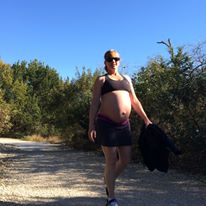
I didn’t take a New Year’s resolution for 2019, so I’m not exactly sure how it happened, but I dropped from 160 pounds to 135.
Let me try to recount the sequence of events not only for the readers, but because I haven’t always been cognizant of the comprehensive nature of all the interlocking decisions I’ve made.
Obviously, I was unhappy with my body weight and so was my doctor. I gave birth in early 2016. Prior to the pregnancy, I was 125 pounds. I’m 5’3 3/4″. While working with a fertility doctor, the medications I took to try to help me get pregnant caused me to gain 15 pounds. I lost 7 pounds after stopping the meds, but stopped trying to diet when it looked like our attempts at pregnancy might be successful. I didn’t want to risk losing a chance at a child. During the pregnancy, I topped out at 170 pounds and afterward while breastfeeding, the pounds melted off, dropping to 136 7 or 8 months after giving birth. However, once I stopped breastfeeding, the weight came back.
For a couple of years, I played yo-yo and tried numerous diets, the most successful of which was Jenny Craigs, but I never managed to keep the weight off. In addition to weight problems, our daughter didn’t sleep through the night until around 3 1/2 years old. We were horribly sleep deprived. I read a lot about the damaging effects, including weight gain of insufficient or bad quality sleep. I also read the book The Secret Life of Fat. Finally, I joined Noom and announced on Facebook that I was going to get 125 pounds back.
I haven’t. I’m still 10 pounds away, but I have become confident that I can. Step 1 was a wearable and a focus on sleep.
After joining Noom, the counselor asked me what I wanted to focus on and I said 8 continuous hours of sleep with 60% deep sleep and average heart rate dip, which is 20% or more. This was an odd goal for a weight loss program, but to their credit, the Noom team didn’t balk. I said I’d work on weight loss after I mastered sleep.
The Sleep Craze
I bought an iWatch. Later I wished I would have bought a $28 HuaWise Fitness Tracker, Waterproof Activity Tracker with Heart Rate Monitor and Sleep Monitor, Waterproof Pedometer, Step Counter, Calories Counter for Android & iPhone. My niece, her boyfriend and my nephew all have fitbits, which are also cheaper than an iWatch. Neither the HuaWise nor the fitbit requires a monthly cellular service charge. Also both fitbit and HuaWise only need to be charged once per week. I constantly fight to keep my iWatch charged, but regardless, some kind of wearable that tracks steps, heartrate, sleep and so on provides critical feedback for both sleep and weight loss management.
I read a lot of blogs, add a black paper accordion folded shade with super sticky glue behind my blinds. I made my room super dark and increased the air condition to make deeper sleep more likely. (Original Blackout Pleated Paper Shade Black, 36” x 72”, 6-Pack by Redi Shade) I guarded my sleep religiously, stopping all action outside the home by 6 p.m. to be able to get the toddler bathed, fed and relaxing in bed by 8 p.m. so I could consistently fall asleep between 8:30 and 9 p.m.
I quit caffeine. No shit! The most extreme part of this whole 9 month process has been eliminating my chemical dependence. It was painful. Headaches. And it took me a while to switch to Diet Sprite or 7 Up or Diet A&W root beer, but after 3 or 4 months, I had the impression that I had actually won. Another goal that Noom didn’t argue with, but simply supported.
I stock several sleep aids. Chamomile tea is the best but tastes horrible. Sleepy Time tea tastes better, but doesn’t seem to be quite as powerful. I gave up on melatonin which is great for changing time zones, but doesn’t keep me asleep. When my mind is restless and I can’t sleep within 20 minutes of laying down, I take dreamwater, luna or sleepy bear gummies. Dreamwater has melatonin with GABA and other stuff. Luna’s advertisement says: made with Herbal Extracts such as Valerian, Chamomile, Passionflower, Lemon Balm, Melatonin & More. The Amazon description for sleepy bear gummies says: Formulated with Melatonin, the berry-flavored chewable gummies also include our proprietary Rest Well Blend consisting of Lemon Balm Leaf, Passion Flower, Valerian Root, and 5-HTP.
But I started meditating. I use several apps: Calm. Oak. Headspace. There are more. I ignore the part about sitting in the lotus position imaging a string above my head holding me straight up, relaxed but alert. I lay in my bed, one leg over a body pillow with the smart phone beside my pillow and most nights I’m asleep before I finish the meditation. Of course, if the meditation works, no need for sleep aids, but if I’m still awake 20 minutes after laying down, I don’t think twice, I just sleep aid. Nothing is going to keep me from hitting that 9 p.m. deadline.
In order to hit my heart rate dip and deep sleep requirements, I discovered that I must do at least 12k steps per day. If not, my sleep quality suffers. What’s more, it doesn’t matter if I jog or stroll. However, unlike the Marines taught me, 3 miles per day is not enough. I usually log something closer to 7 miles per day in order assure quality sleep. Of course, this amount of movement also helps with weight loss. But even if operating in a caloric deficit, a sleep deprived body can hold on to weight. I don’t know why. I don’t know how. But I have seen over the last 9 months that even if I do everything else right, but my sleep isn’t good, the weight will not come off. This might be because of the incredible power of intermittent fasting. Of course, sleeping people don’t eat.

just before giving birth max body weight at 170. a year later, I’d be 160 pound without the baby.

Both of us pretty close to perfect bodyweight. I don’t know about Bin, but I was 125 pounds in this photo.

Charlotte Ann Hu (Crouch) lowest adult body weight in 2012

During NCO School Camp Hansen, Okinawa, Japan, 1987
I’ll do more weight loss posts with information regarding food and daily habits, but for now, sleep well!
During NCO School Camp Hansen, Okinawa, Japan, 1987
Charlotte Ann Hu (Crouch) lowest adult body weight in 2012
Both of us pretty close to perfect bodyweight. I don’t know about Bin, but I was 125 pounds in this photo.
just before giving birth max body weight at 170. a year later, I’d be 160 pound without the baby.
Significant Cyber: Hack a Nation Offline
In 2007, Estonia, a small European country decided to move a controversial statue to a cemetery on the outskirts of the metro area. Someone posted inaccurate news stories that the statue was going to be destroyed and the cemeteries along with it. Riots ensued.
On 26 April 2007 Tallinn erupted into two nights of riots and looting. 156 people were injured, one person died and 1,000 people were detained.
From 27 April, Estonia was also hit by major cyber-attacks which in some cases lasted weeks.
Online services of Estonian banks, media outlets and government bodies were taken down by unprecedented levels of internet traffic.
Massive waves of spam were sent by botnets and huge amounts of automated online requests swamped servers.
The result for Estonians citizens was that cash machines and online banking services were sporadically out of action; government employees were unable to communicate with each other on email; and newspapers and broadcasters suddenly found they couldn’t deliver the news.
 35-Year Public Affairs & IT Professional